
How to Start a Blog With Hostinger (As a Beginner)
Starting a blog can feel overwhelming.
You have different aspects to worry about. Hosting, domains, WordPress, themes, plugins… It’s easier to get lost before you have the chance to start.
Disclosure: Some of the links in this post are affiliate links. This means I may earn a commission if you purchase through them, at no additional cost to you.
I only recommend services I personally use and believe can help beginners start their blogs.
When I decided to start my blog, I had no technical background.
Initially, I was unsure about which hosting provider to choose.
After comparing different hosting providers, primarily focusing on prices and what’s included, I decided to go with Hostinger.
If you want to check their current plans, you can see Hostinger’s current plans on their official website.
In this guide, I’ll walk you step by step through how to start your own blog, just like I did, with Hostinger, from your niche to your first post.
Why I Chose Hostinger
Choosing the right hosting provider was the biggest decision in my blog journey.
The main reason I chose Hostinger was its seamless WordPress integration.
When you are starting a blog, you need to be able to manage your own website easily, even if you are using templates. And that’s where WordPress is the best.
It gives you full control of your website, and you can change anything you want.
Another important factor was flexibility.
With an extensive amount of plugins you can choose from, SEO, Newsletters, Email Marketing, Page Speed, and many others that allow your blog to grow over time.
The other main aspect was the pricing. At the time, I purchased the one-year Premium Plan that included business email, domain, LiteSpeed technology, and AI tools.
Which Hostinger Plan Should You Choose?
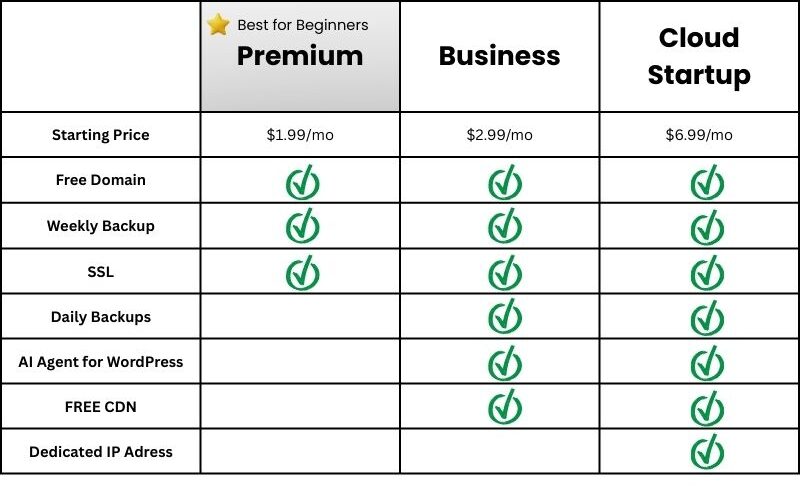
If you’re just starting your first blog, the Premium plan is more than enough. It gives you everything you need without overpaying for services you probably won’t use.
If you want daily backups and extra performance, go with the Business plan.
You can check the current discounts and full features list on Hostinger’s website.
You can also use my link to get 20% off your plan.
Advantages of Using Hostinger
Easy WordPress Integration
Hostinger makes installing WordPress simple. You just go to the Website section, click on “Add website” and choose WordPress.
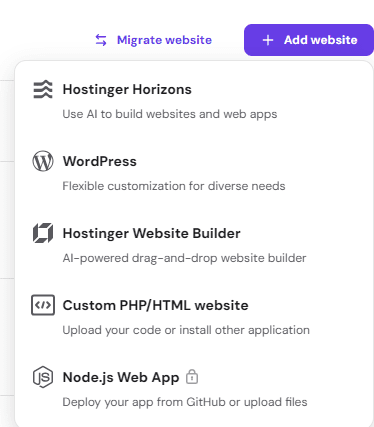
Here’s what the setup options look like after you click on “Add website.” After filling in basic details like your website domain, name, and where you’re from, Hostinger sets everything up automatically.
You can choose between a pre-built website, theme, or blank installation.
Depending on your expertise with website creation, I would consider choosing a theme, something like Twenty Twenty-Five, that gives you full flexibility.
Affordable Pricing for Beginners
Hostinger offers beginner-friendly pricing without removing essential features.
You will receive a free domain and email marketing for 1 year. At the same time, your website will have a free SSL, keeping it safe.
You can create up to 3 websites, which gives you flexibility to expand your projects in the future.
AI Support That Actually Helps
One feature I didn’t expect to use much was Kodee, Hostinger’s AI support assistant.
As a beginner, I had questions about almost everything. From DNS settings, plugins, to basic configurations, and even small design choices.
Even though I kept watching tutorials, some specific issues weren’t clearly explained anywhere. That’s when I decided to talk to the AI assistant.
I was able to get instant answers, which helped me solve most of my beginner-level problems, reducing confusion.
This is one of the reasons I found Hostinger beginner-friendly overall. While AI assistants aren’t perfect, having immediate support makes the learning process much easier and smoother.
Website Speed Test Check
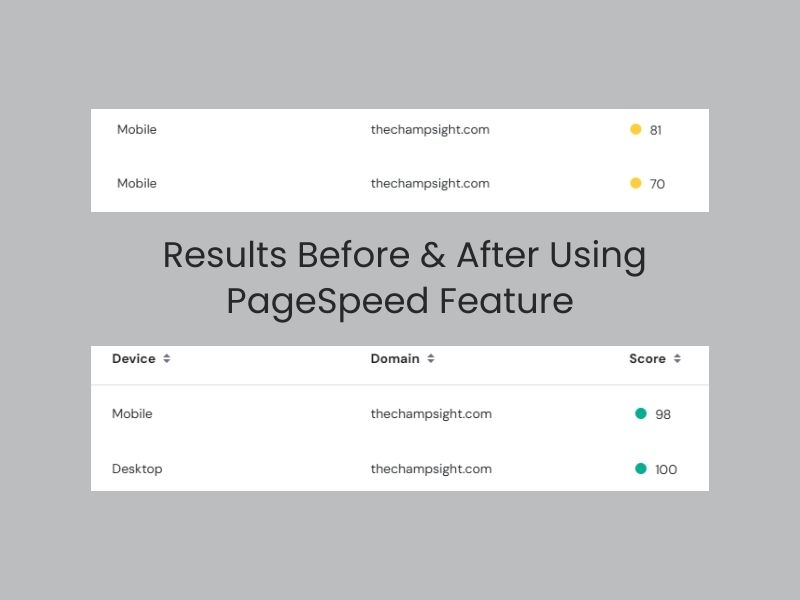
One of the most significant improvements I noticed after publishing a few articles was my website’s performance score.
My results weren’t great because I hadn’t properly optimized images, and I didn’t know how to. This was affecting overall user experience, even my own.
What helped was Hostinger’s built-in PageSpeed monitoring feature. It allowed me to check my blog’s performance directly from the dashboard without using external platforms, such as PageSpeed Insights.
After every result, I would always check with Kodee (AI assistant) and available tutorials to identify what I needed to improve and make small adjustments.
Here are my actual results before and after optimizing my blog.
Business Email Included
Hostinger also includes a professional business email, which allows you to create an address using your own domain (contact@thechampsight.com).
Having a branded email makes your blog look more professional and trustworthy compared to using free email providers.
You’ll be able to manage your inbox from the dashboard and set up features like automatic replies and email forwarding.
For me, it was simpler because I wanted all of it integrated in the same place.
Beginner-Friendly Dashboard
One thing that made a big difference when I was starting was how simple the dashboard felt.
When you’re starting a blog, it’s easy to feel overwhelmed. There’s so much to focus on that you may postpone tasks for the next day, and suddenly days start passing without progress.
Tasks like managing my domain, checking performance, or even installing WordPress are accessible from the same dashboard.
When I was applying for AdSense approval, Hostinger made the process much easier. You can reach your files and create ads.txt inside the dashboard, without having to go to external platforms.
Overall, these small details made the whole difference in my experience. I could actually focus on writing instead of struggling with technical settings
Who Is Hostinger Best For?
Hostinger is best for beginner bloggers and SMEs looking for affordable pricing and WordPress hosting.
When you’re just starting, you don’t need advanced infrastructure. What matters is having quality and authentic posts that actually make your blog improve in rankings.
Hostinger provides everything you need for the first stage of your journey, as I mentioned in the advantages.
If it’s your first blog, this setup is more than enough for you to grow, learn, and improve over time.
However, if you have or expect very high traffic, need advanced server customization, or have a business that requires a specific infrastructure from the beginning, then moving to VPS or dedicated hosting may be the better choice.
Disadvantages of Using Hostinger
Renewal Prices Are Higher
Although Hostinger offers very attractive introductory pricing, the renewal cost is no joke.
Because of the first buy promotion, I had to pay three times more than what I paid the first time, just for the hosting. If you decided to add every tool you’ve used, it may increase to four times more.
This is common and standard in the hosting industry, but it’s important to be aware of it before you make the purchase.
To minimize this impact, you can always choose long-term plans instead of shorter ones.
Not Ideal For Large-Scale Websites
If you’re just starting, Hostinger is more than enough. If you’re running 200k visitors a month, you’ll probably need something stronger.
If your website requires advanced server configurations, you should start looking at upgrades.
For small to medium websites, Hostinger’s infrastructure is more than enough.
Advanced Users May Want More Control
Hostinger is designed to be beginner-friendly and easy for anyone to manage.
While this simplicity is a major advantage for anyone starting, advanced developers, and even bloggers who need full server control or even customized environments, should rely on some other hosting provider.
In those specific cases, a VPS or dedicated solution, as I was saying earlier, would offer much more control.
Setup Guide
Choose Your Niche
Choosing a niche shapes where your content is going and who you’re writing for.
Instead of trying to cover everything, focus on a specific topic that aligns with your interests and knowledge.
There are endless subjects you can choose from, but I recommend that you find something that aligns with these questions:
- What topics do I enjoy talking about?
- What problems can I help people solve?
- Who am I trying to reach?
- What are my areas of expertise?
Choosing something you are not passionate about can impact your long-term motivation, which will affect your writing, work schedule, and readers’ experience.
I made an article some time ago that includes whether you should pursue your talent or your passion.
Consider a Micro Niche
Instead of targeting a broad topic like “travel”, try to narrow it down.
Instead of “best hotels”, focus on “budget hotels in Canada” or even in a specific city.
A micro niche helps you stand out and face less competition, which will attract a more specific audience, and that’s called segmentation.
Choose a Plan
Once you’ve defined your niche, the next step is choosing the right hosting plan.
If you are a complete beginner, the Premium plan is more than enough.
It includes everything you need to launch your blog, and as I said earlier, you’ll avoid paying for features you won’t use in the beginning.
You can always upgrade later as your traffic and needs grow.
Register Your Domain
After choosing your plan, you’ll need to register your domain name. This will be your blog’s address. (for example, thechampsight.com)
If you choose an annual plan, Hostinger usually includes a free domain for the first year. You’ll also be able to check whether your desired name is available during checkout.
You can use extensions like .blog, .net, or even .ca, depending on your audience or niche.
I personally recommend prioritizing .com for credibility and simplicity.
Install WordPress
Once you’ve completed your purchase, go to the Websites section and click on “Add Website”.
Select WordPress. You’ll create your login details and then choose between:
- A pre-built AI Website
- Pre-built template
- Blank installation.
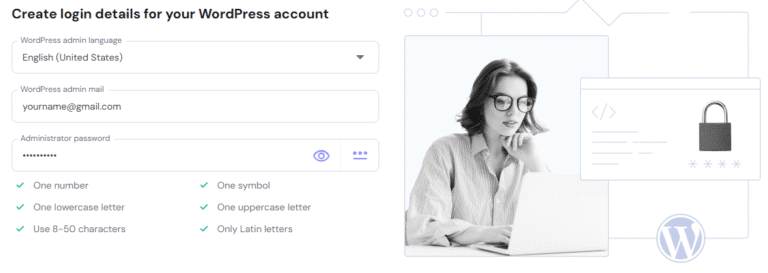
If you’re completely new, the AI option can help you get started faster.
However, I recommend learning the basics of WordPress over time.
In the long run, understanding how your website works will give you more control.
Install Essential Plugins
Don’t overload your website with plugins.
Too many can slow down performance.
Start by having:
- Security plugin (e.g., Wordfence)
- Analytics Integration (to connect Google Analytics)
- SEO plugin (SureRank, Yoast, Rank Math)
You can always add more tools later as your blog grows.
If you want more design flexibility, you can always install a page builder like Elementor
Start Posting
Now go build. It’s time to start writing.
Consistency is the most important factor in blogging. Results won’t happen overnight.
It can take months, sometimes even years, to see growth.
If your only goal is quick money, there are faster paths. Blogging requires patience and long-term commitment.
Write about topics you genuinely care about.
When you enjoy what you’re creating, staying consistent becomes much easier.
Keep posting consistently. Review your posts so you can improve with each one, and keep going. Start with one article per week and build momentum gradually.
Final Verdict
If you’re just starting your blogging journey, Hostinger is a solid and beginner-friendly option.
It offers affordable prices, an easy setup process, and features that will help you grow over time without feeling overwhelmed.
It’s not the ideal solution for someone who has a lot of traffic or needs customized projects. But for someone just starting, it delivers excellent value for the price you pay.
If you decide to get started with Hostinger, you can use my affiliate link below to get 20% off your plan. You won’t pay extra because of that, and it helps support my work.
Even if you choose another provider, the most important step is to begin. You won’t be perfect at first, but the sooner you start, the sooner you’ll improve and see results.
Ready to Start Your Blog?
Launch your blog today with my exclusive 20% discount.
No extra cost to you. I may earn a small commission.
Frequently Asked Questions
Is Hostinger good for SEO?
Yes, Hostinger provides SSL certificates, fast loading speeds, and compatibility with SEO plugins like Rank Math, Sure Rank, or Yoast.
However, ranking on Google depends more on your content quality and consistency rather than on the hosting provider alone.
Is Hostinger the same as WordPress?
No, Hostinger is a web hosting provider, while WordPress is a content management system.
Hostinger allows your website to be online. WordPress is the software you install to manage and create your blog.
Is Hostinger good?
Yes, for beginners and small projects, Hostinger offers an excellent value for the price you pay. It combines affordability and simplicity.
If you want a low-risk option, Hostinger is a practical choice.
Does Hostinger own your domain?
No. If you register your domain through Hostinger, you are the legal owner.
Hostinger just acts as the registrar, but the domain is registered under your name and account.
You can transfer it to another provider at any time.
How much does it cost to start a blog with Hostinger?
It can cost as little as $2 per month if you choose Hostinger’s annual “Premium” plan.
This often includes a free domain for the first year and SSL security.
Overall, you can start a blog for under $50-70$ for the entire first year, depending on the plan you decide to choose.
Subscribe for More Business Insights
You May Also Like

I Lost $50 to a Scam. What It Taught Me That No Course Ever Could